¶ Work process in Cashdesk aplication
¶ Log in
The user logs into the Cashdesk application with a PIN code - a quick password. The PIN is entered in the Users list in the Manager.
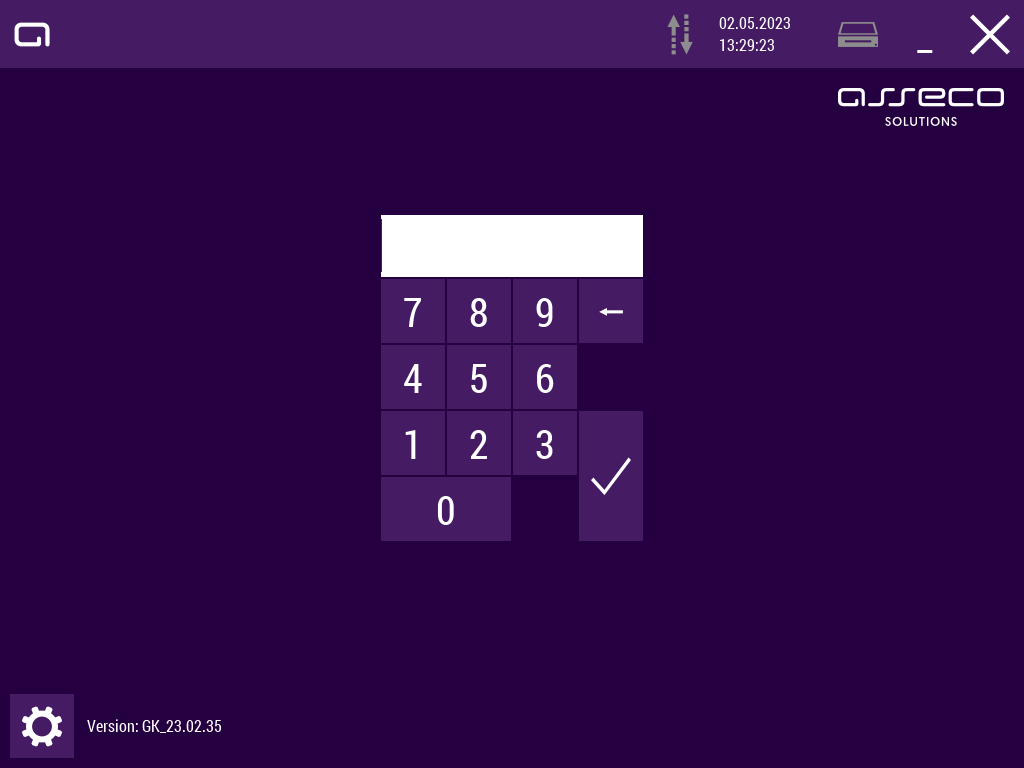
Depending on the cash register settings in the Other - Settings section, the user may see the Bill window or the Open accounts window after logging in.
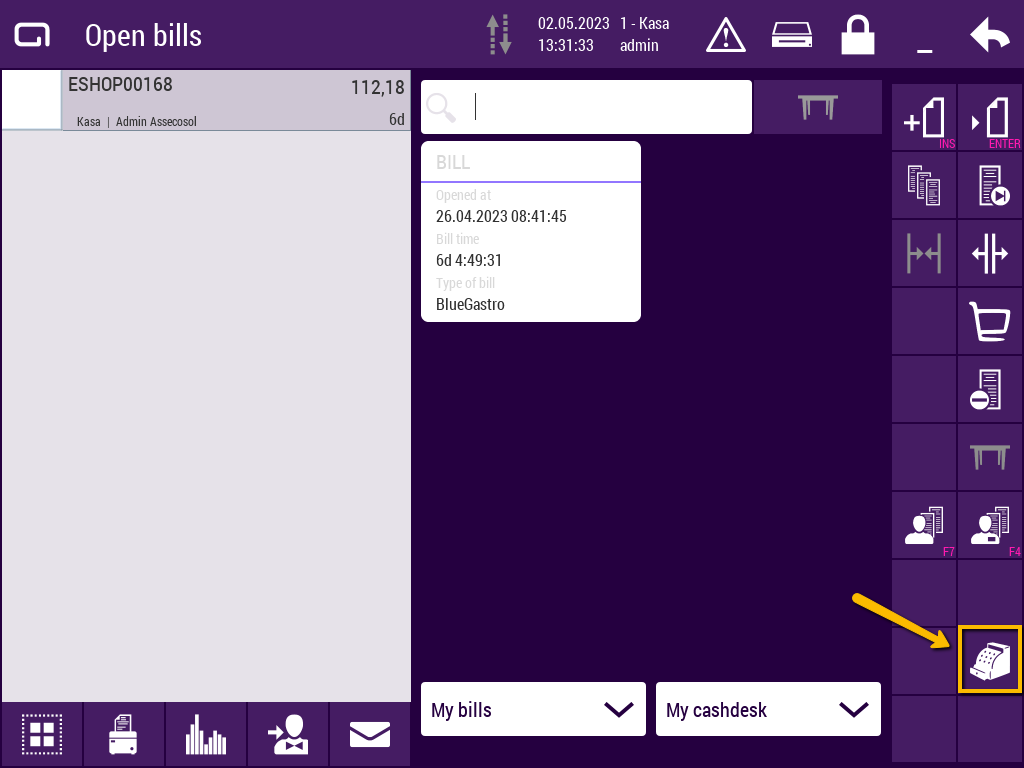
The user switches to the Account window by tapping the Casdesk icon.
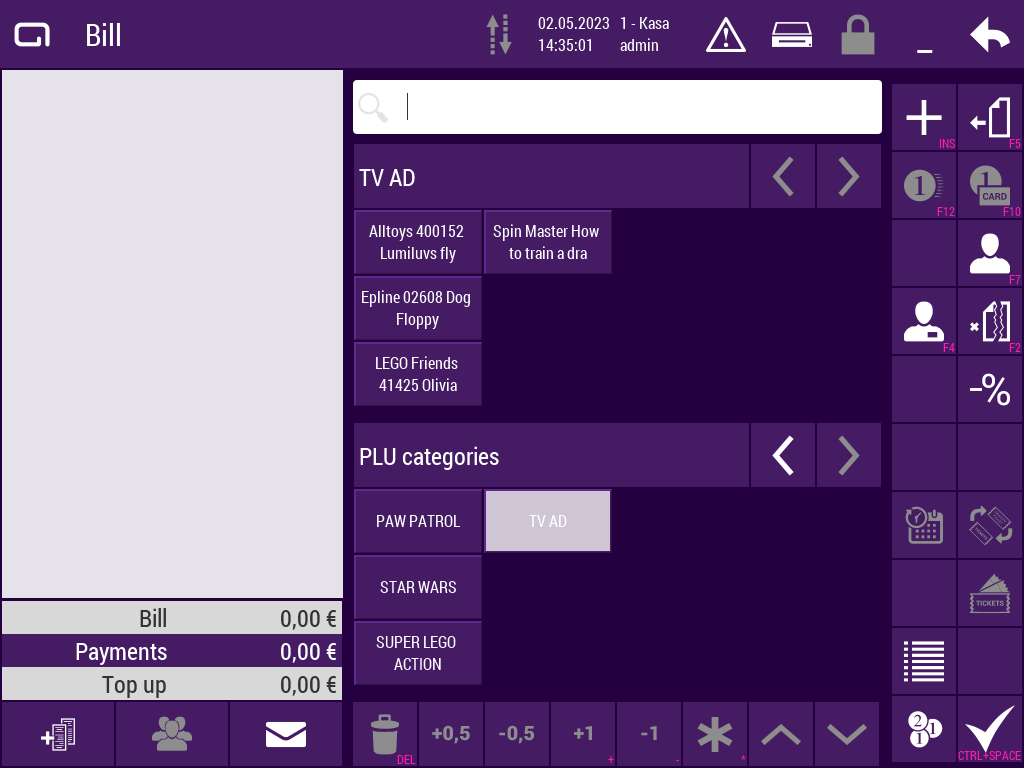
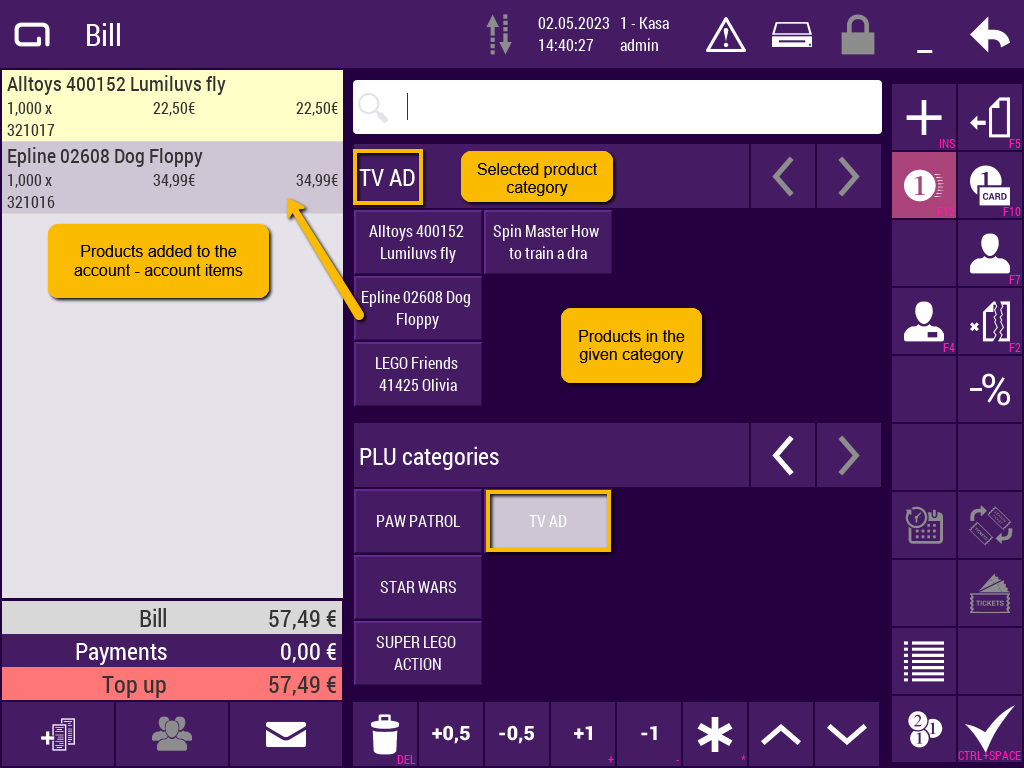
The display of categories and PLUs is possible in two modes, according to the settings in the section Settings - Others - PLUs and categories in different screens. When the setting is confirmed, the list of categories is full screen, and after selecting a category, a screen with a list of PLUs in the selected category opens. When not confirmed, the list of categories is in the lower half of the screen and the PLU from that category is in the upper half of the screen.
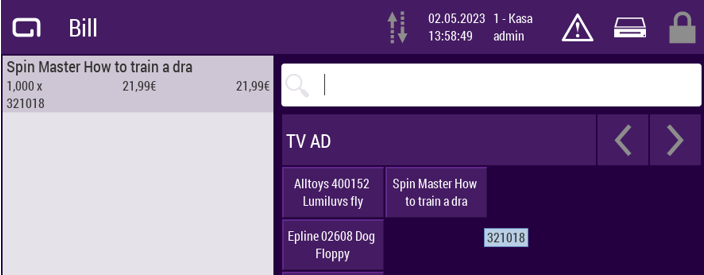
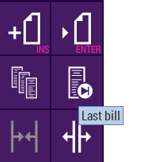
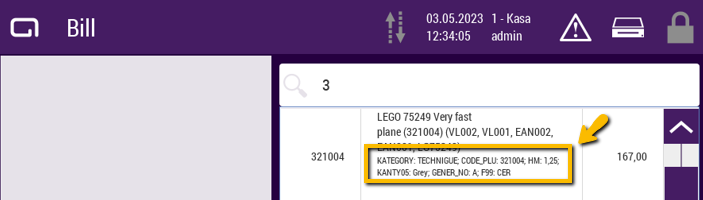
When working on the Cashdesk, actions and PLU code hints are displayed. When the cursor is kept over an action button or a PLU product button, hints are displayed.
¶ Synchronization of products
Before starting work in the Cashdesk application, it is necessary to start a manual synchronization of all products from the Asseco QASIDA SPIN system. The user performs the synchronization by confirming the button in the upper bar and selecting ERP products all.
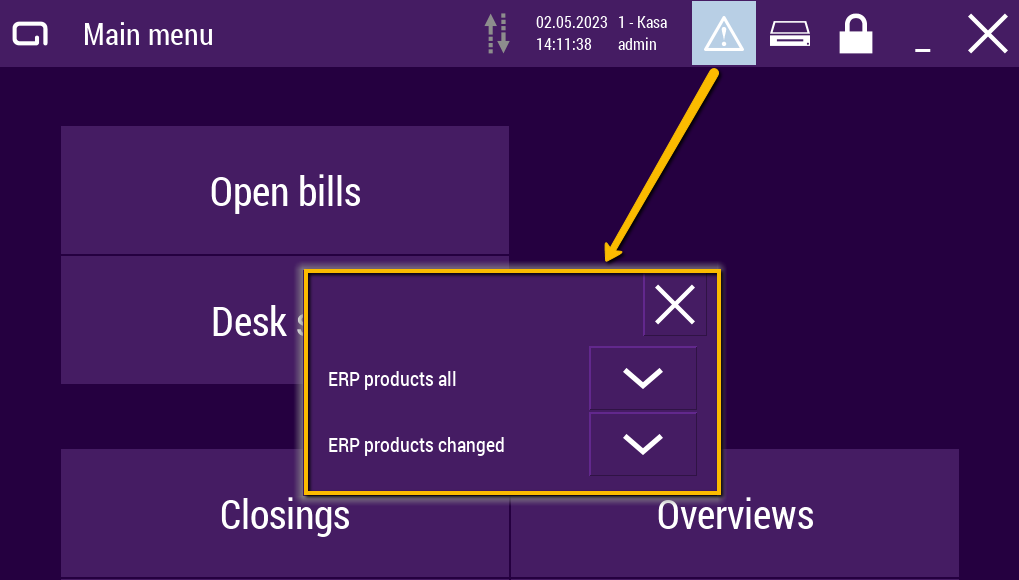
It is possible to start a manual synchronization of products that have been changed on the side of the Asseco QASIDA system, by choosing ERP products changed.
By configuring CRON in the Planning tab of the Cashdesk system settings, it is possible to set automatic synchronization of changed products. Only product and price list changes since the last synchronization will be included in the next one.
The user will receive a message stating "Interrupted communication with the economic system" if communication with the QASIDA SPIN system has been shut down while the download of changes is being manually started.
¶ Start using the bill
¶ Generating and paying bills
The user can search for items in several ways:
- The user adds items to the account by clicking on the appropriate PLU category button and selecting the product. The selected product is added to the account - left side of the screen:
2. The user searches for items by PLU code, EAN or name in the search bar. After searching, the product can be added to the bill by entering. The product code, name and EAN are displayed in the search results.
3. It is possible to install an EAN code reader to the Cashdesk application and add products to the bill in this way
If the EAN is not found, it is possible to set a sound notification in kasa.conf - <entry key="sound.ean.not.found">2.wav</entry>.
The following options exist for adjusting the number of chosen items:
| 1. By double-clicking on an item in the bill and selecting the Change quantity option |
 |
| 2. By confirming the icon at the bottom of the screen |
|
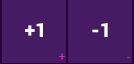
| 3. By using the +1/-1 buttons at the bottom of the screen |
 |
| 4. By using the +/- keys on the keyboard on the marked item in the bill | |
| 5. Deleting the selected item - icon at the bottom |
 |
| 6. +/-/* keys, if the setting is enabled in kasa.conf |
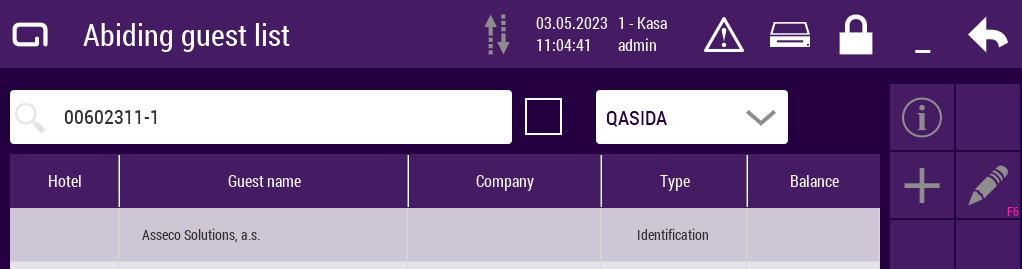
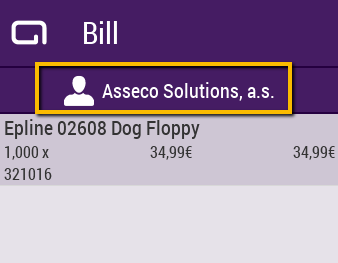
It is possible to add a specific customer to the bill after confirming the icon Payment for permanent guest or by pressing F7. After confirming the icon, the window List of permanent guests (Costumers) connected from the Asseco QASIDA system will appear. More information about customers is described in the section Sales to customers.
The user closes the prepared account by making a payment. Two payment methods can be used:
| 1. Accelerated payment - as an accelerated payment, payment in cash is set by default. Only one payment method can be set for accelerated payment (Checkouts - Codes - VAT, Payments, Discounts, Transactions - Payment methods). For accelerated payment, you can use the keyboard shortcut F12. |
 |
| 2. Combined payment - after confirming the icon, a list of allowed payments for the given logged-in user will be displayed |
 |
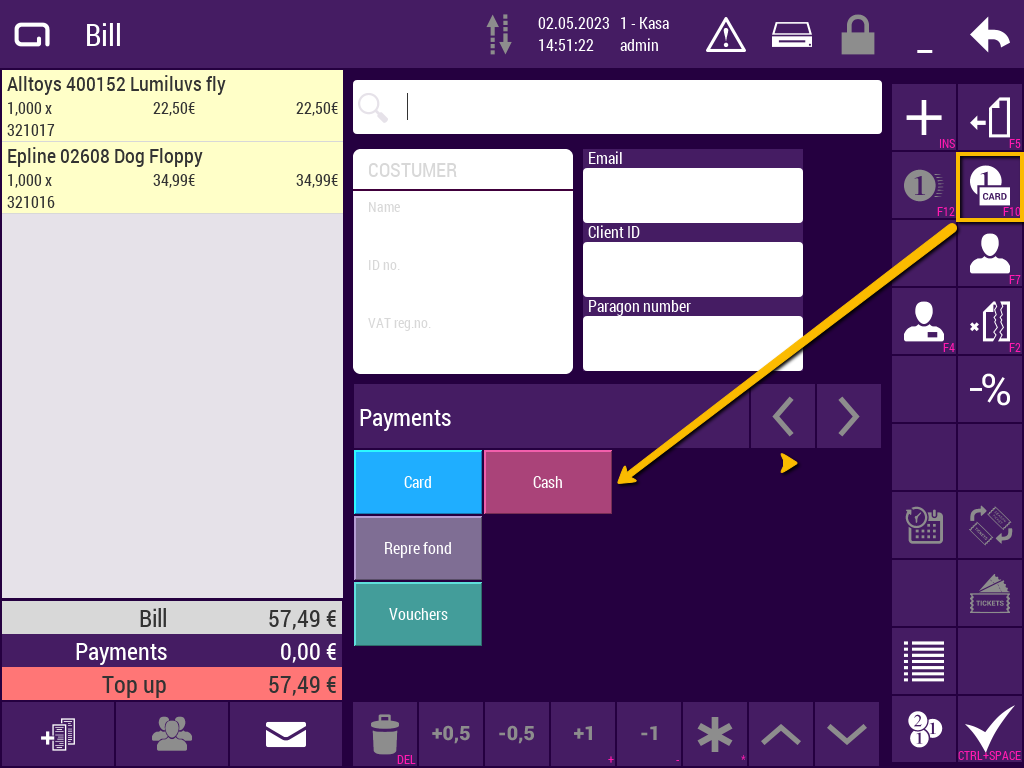
After confirmation of the selected payment, the account is closed and a receipt is printed.
A discount can be applied to the bill. An open account can be cancelled. From the open bill window, it is possible to switch to the Open Accounts window. For the mentioned operations, it is necessary to have confirmed permissions in the Users codebook (description in the section Rights for the KASA module - Open account).
Closed bills can be viewed via the Daily accounts icon. A closed bill can be canceled or the payment method can be changed on the account. A copy of the receipt can be printed. For the mentioned operations, it is necessary to have confirmed permissions in the Users codebook (description in the section Rights for the KASA module - Daily accounts).
¶ Closings and cashdesk operations
¶ Inventory tracking
¶ Products with serial number
¶ Payment of invoices
¶ Support for returnable packaging
¶ Sales to customer
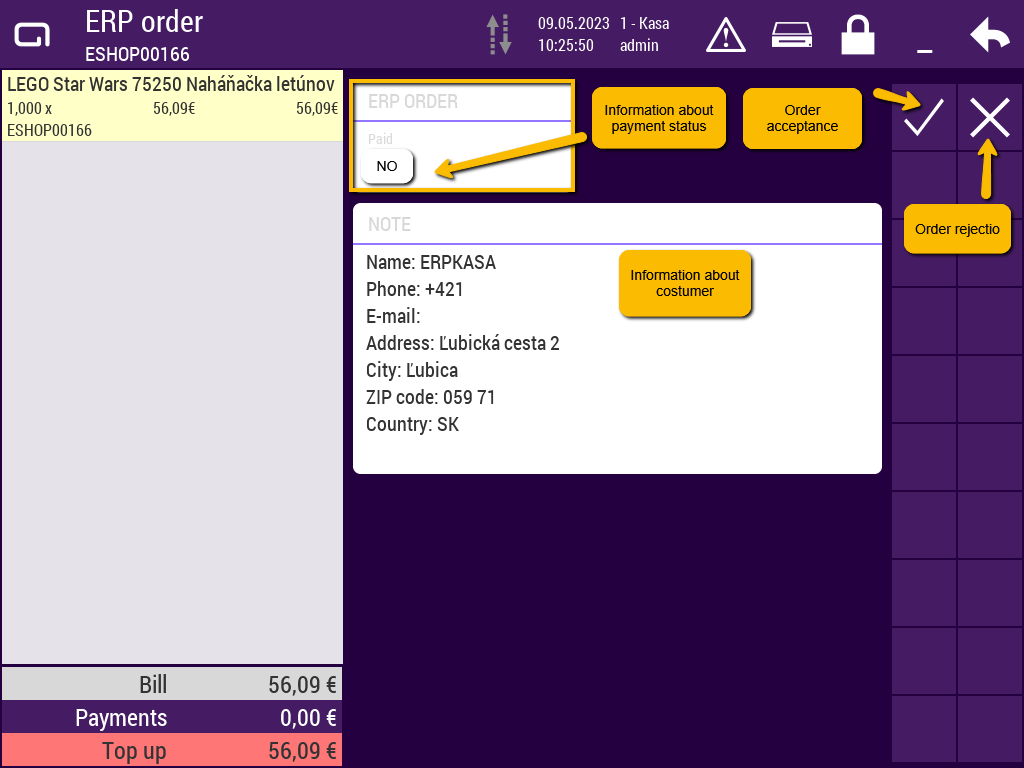
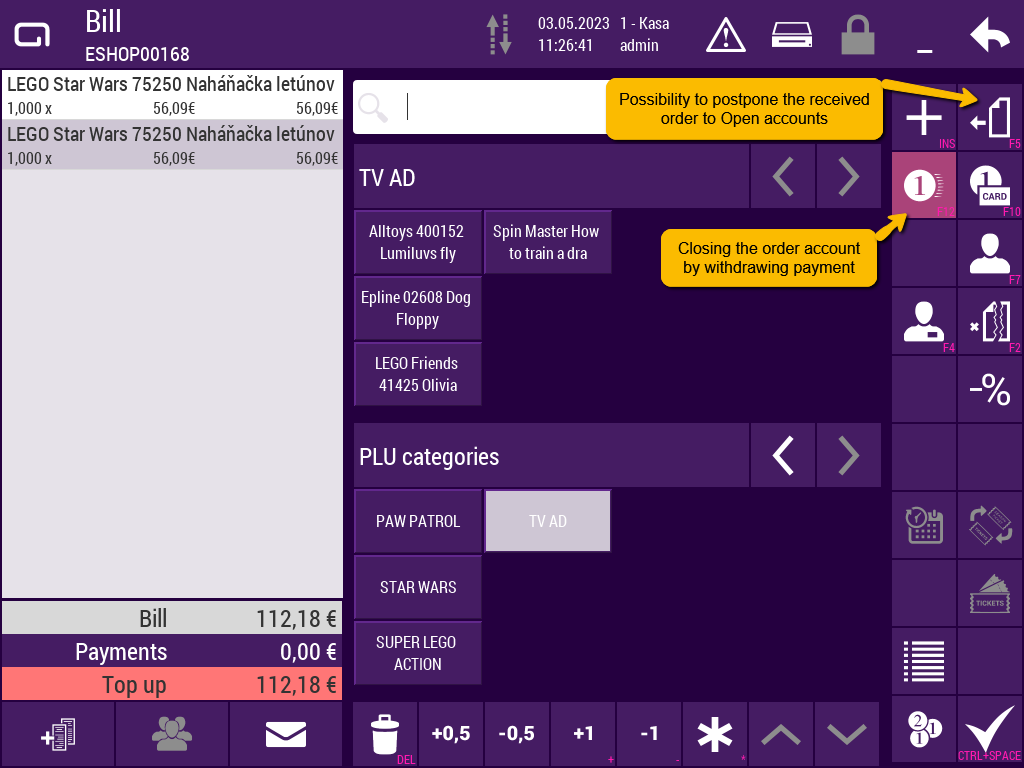
¶ Handing the order
¶ Handing the order without packages
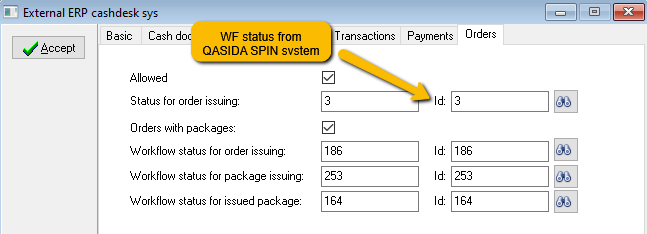
¶ Handing the order with packages
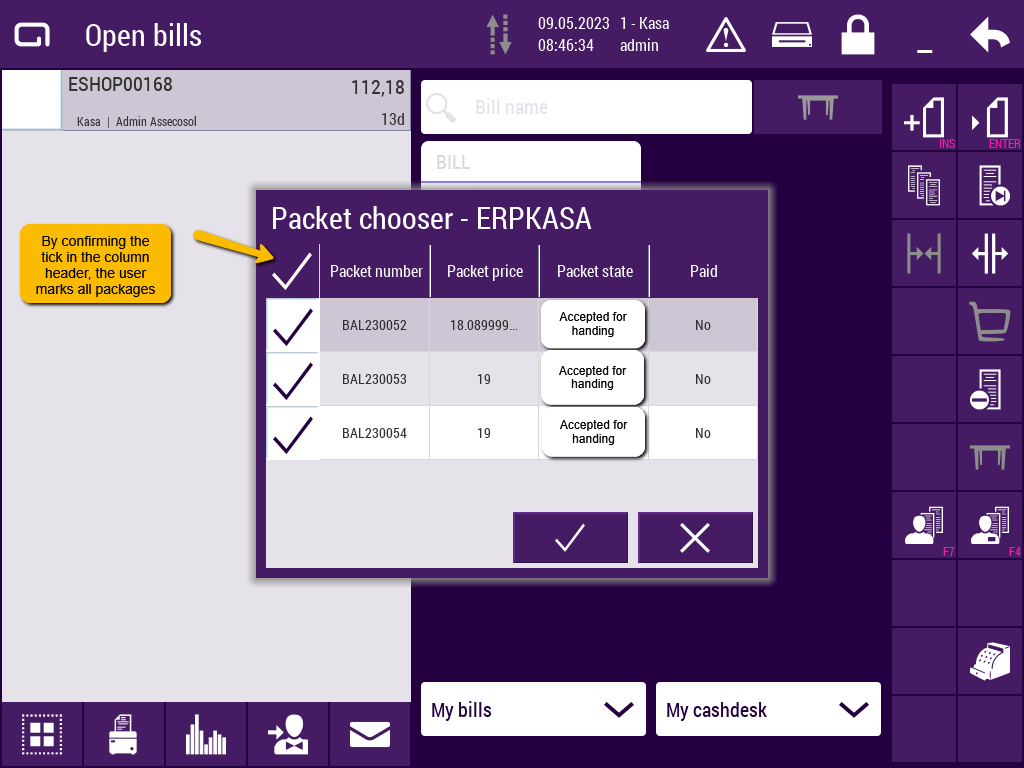
¶ Opened bills and received order
¶ Cancellation of order payment
¶ Overviews
¶ System ERP Cashdesk settings
¶ Basic tab
¶ Cashdesks tab
¶ Payments tab
¶ Cashdesk documents tab
¶ Settings kasa.conf