¶ Qasida Start - Backup and Restore
Backing up data is an important tool to prevent unforeseen situations that could result in the loss of your data. For the Qasida Start system, we have implemented automatic backup functionality: you don’t have to worry about anything, the backup will run automatically! In the future, a manual backup option will also be available.
Even though Qasida Start automatically backs up your data to the local disk, we recommend regularly copying backups to external storage to ensure even higher security (see Chapter 3. External Backup).
To simplify the process, we have prepared the following procedures for you:
¶ 1. Automatic Backup
¶ Setting up automatic backup during Qasida Start installation
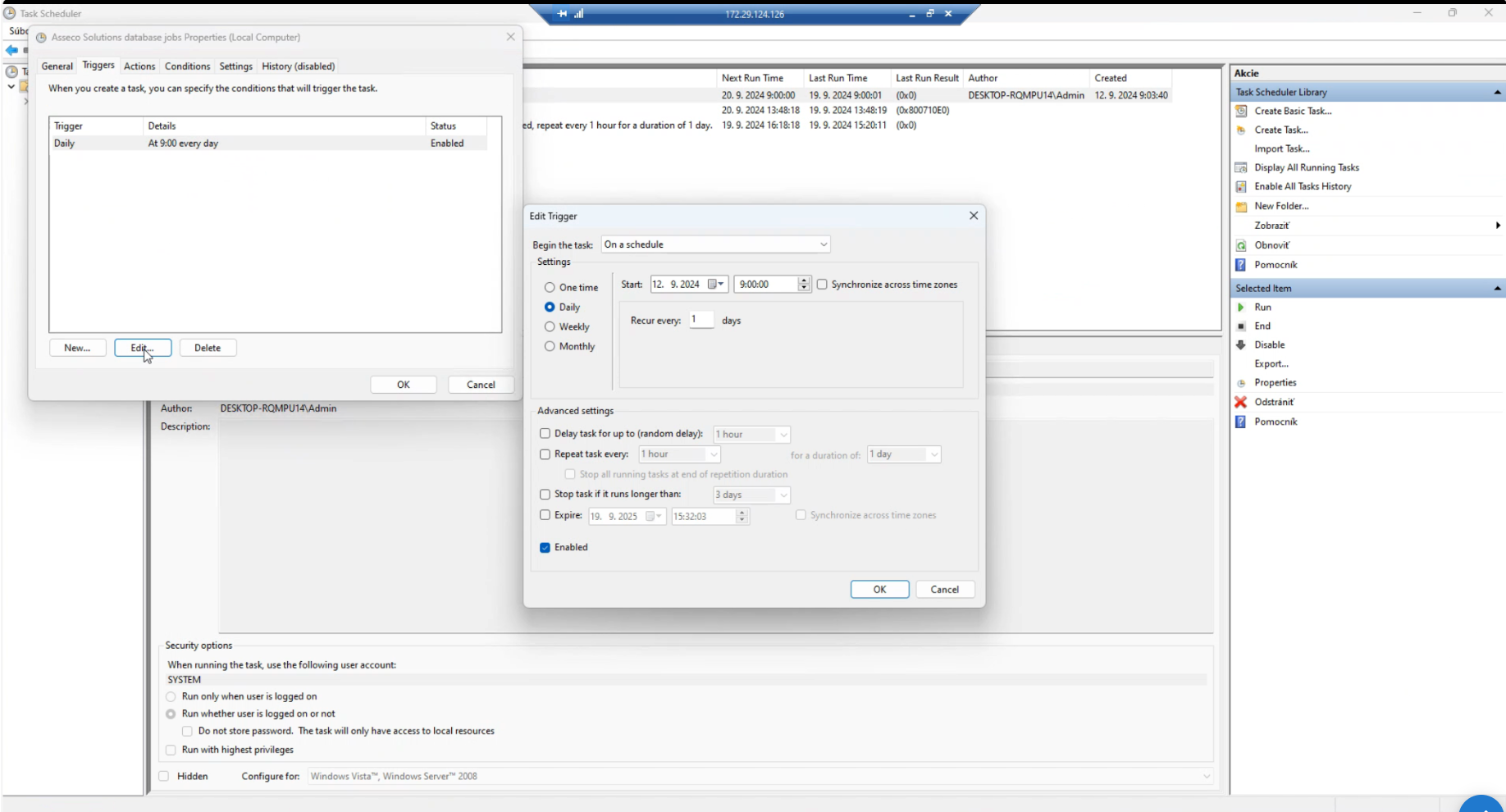
The Qasida Start installation includes automatic full backup setup. The default frequency is daily at 9:00 AM. Retention is 60 backups or 90 days.
-
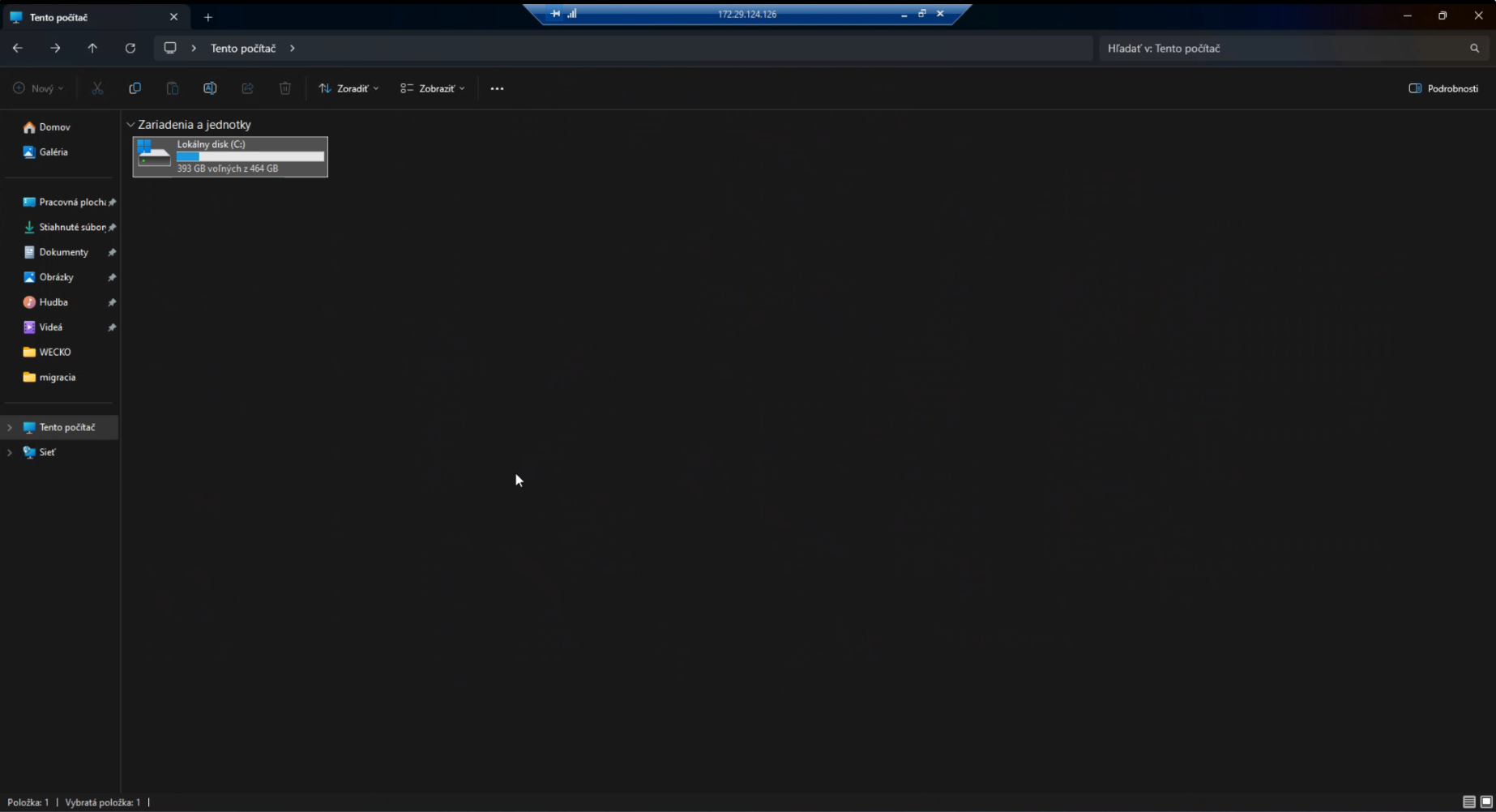
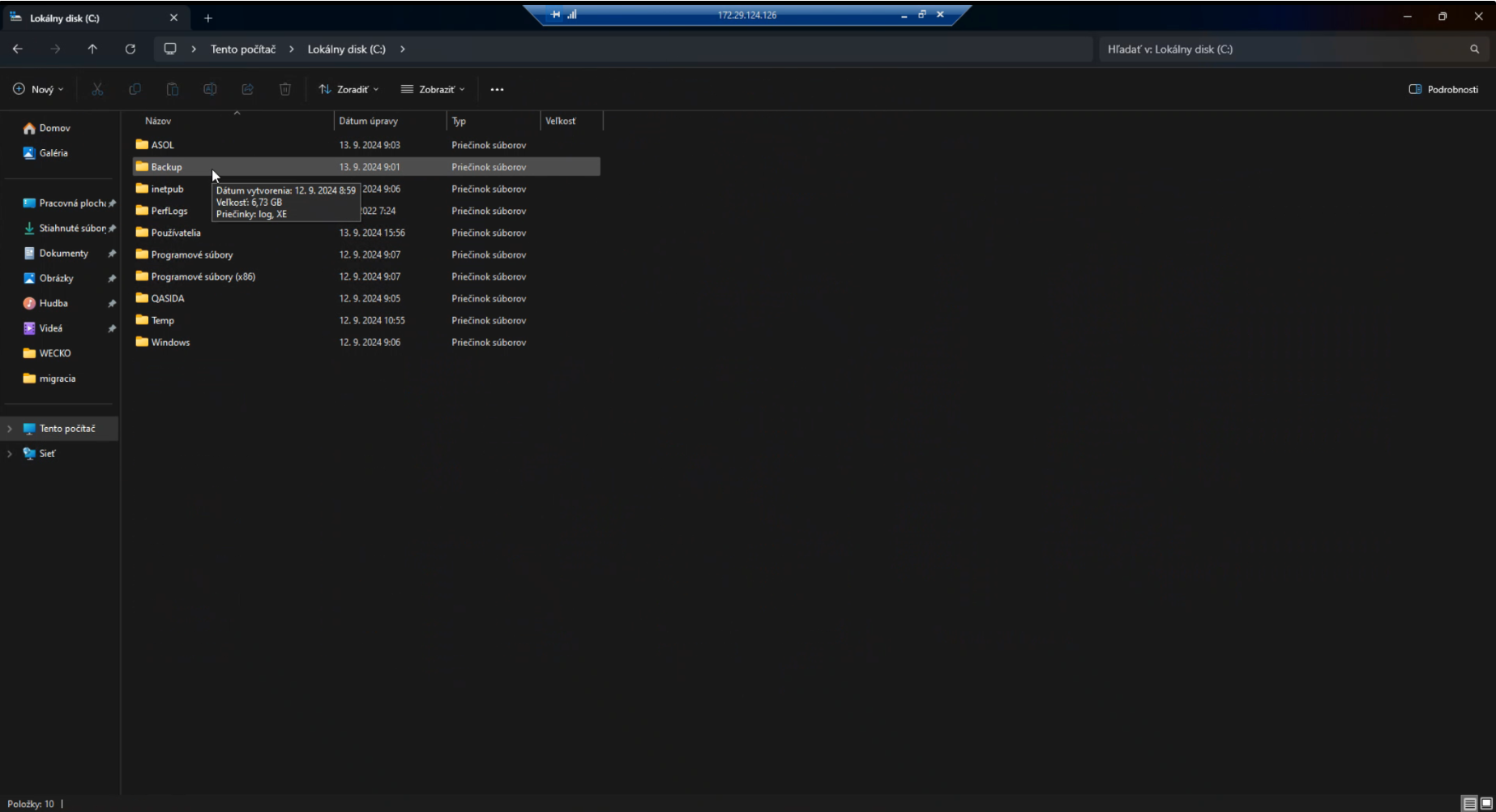
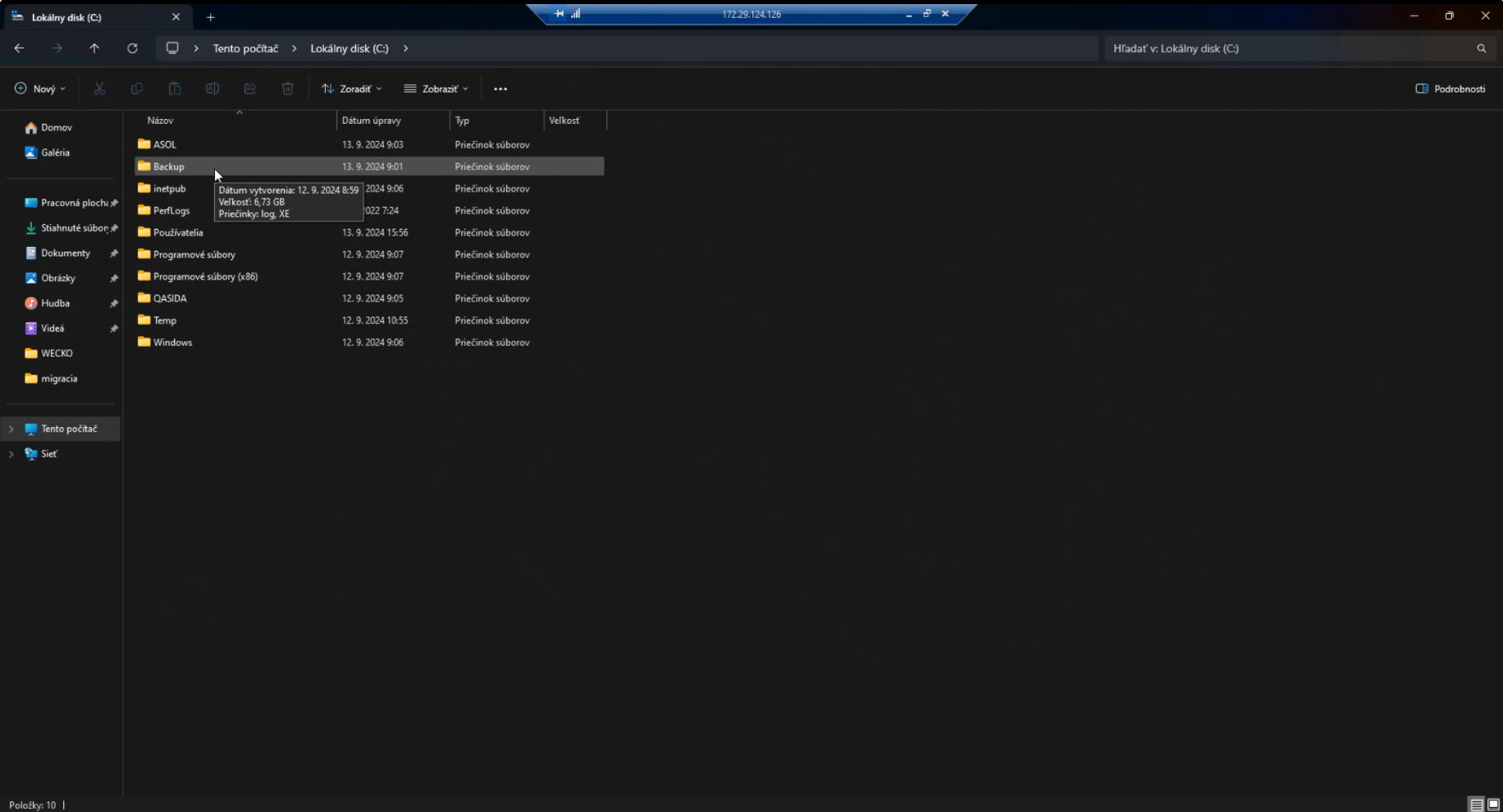
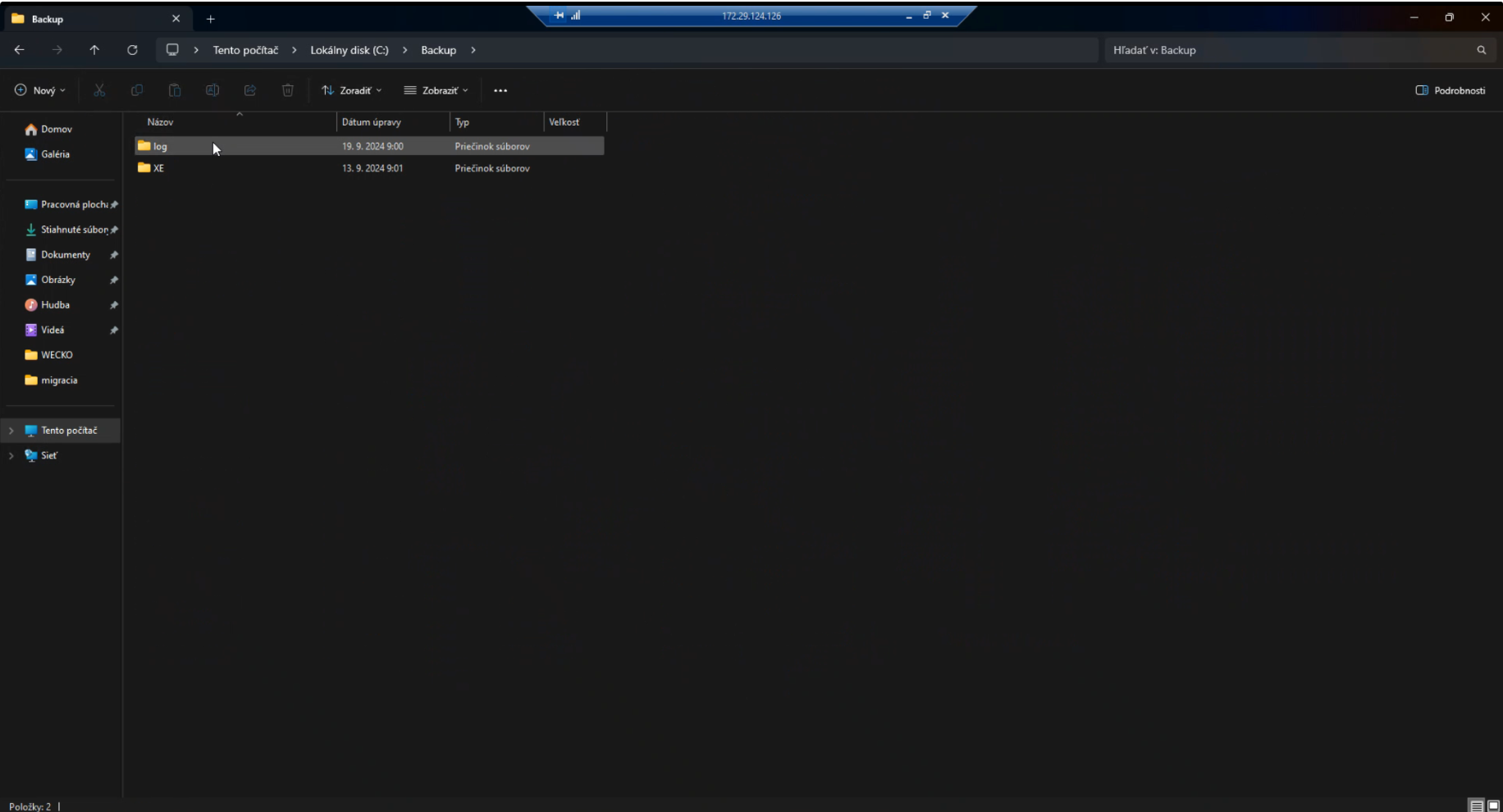
Where is the backup stored? Backups are saved on your computer in the folder
C:\Backup\(this is the default option during Qasida Start installation – if a different folder was selected, use that path). If you cannot find this folder, you can search for it using File Explorer (click on “This PC” and enterC:\Backup\in the address bar).
-
What is a Full Backup? A full backup is a complete copy of the entire database, including all your data. This ensures you always have a complete copy of your data.
-
How are older backups managed? The system automatically keeps only the last 60 backups, or, if backups are performed less frequently, it retains backups for a maximum of 90 days. Older backups are automatically deleted to save disk space.
¶ Modifying existing automatic backup settings
To change the time or frequency of backups (e.g., to run the backup at a different time or multiple times per day), follow these steps:
-
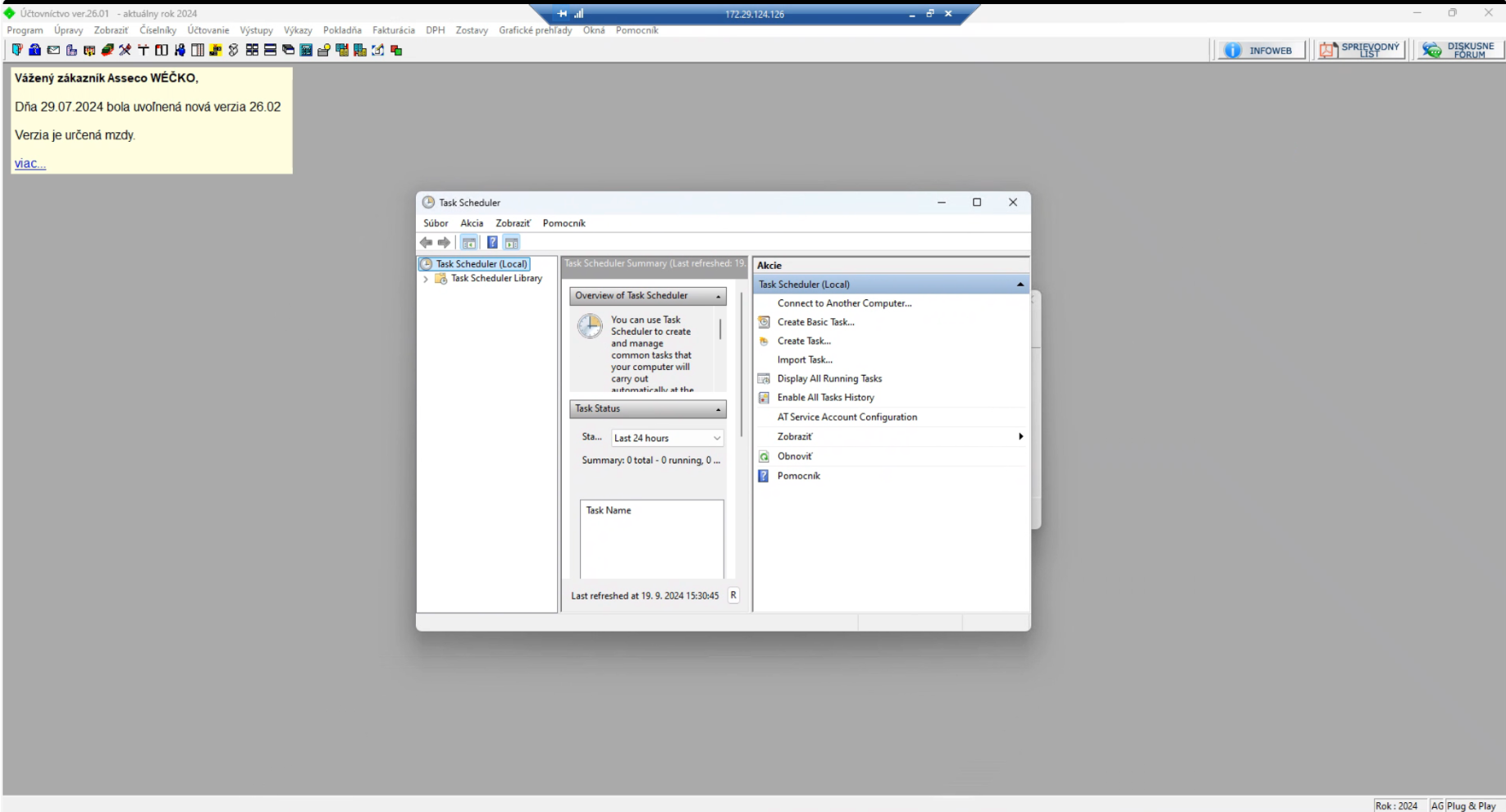
Open Task Scheduler:
- Press
Win + Son your keyboard (Windows key + S).

- Type “Task Scheduler” in the search box and click the program when it appears.
- Press
-
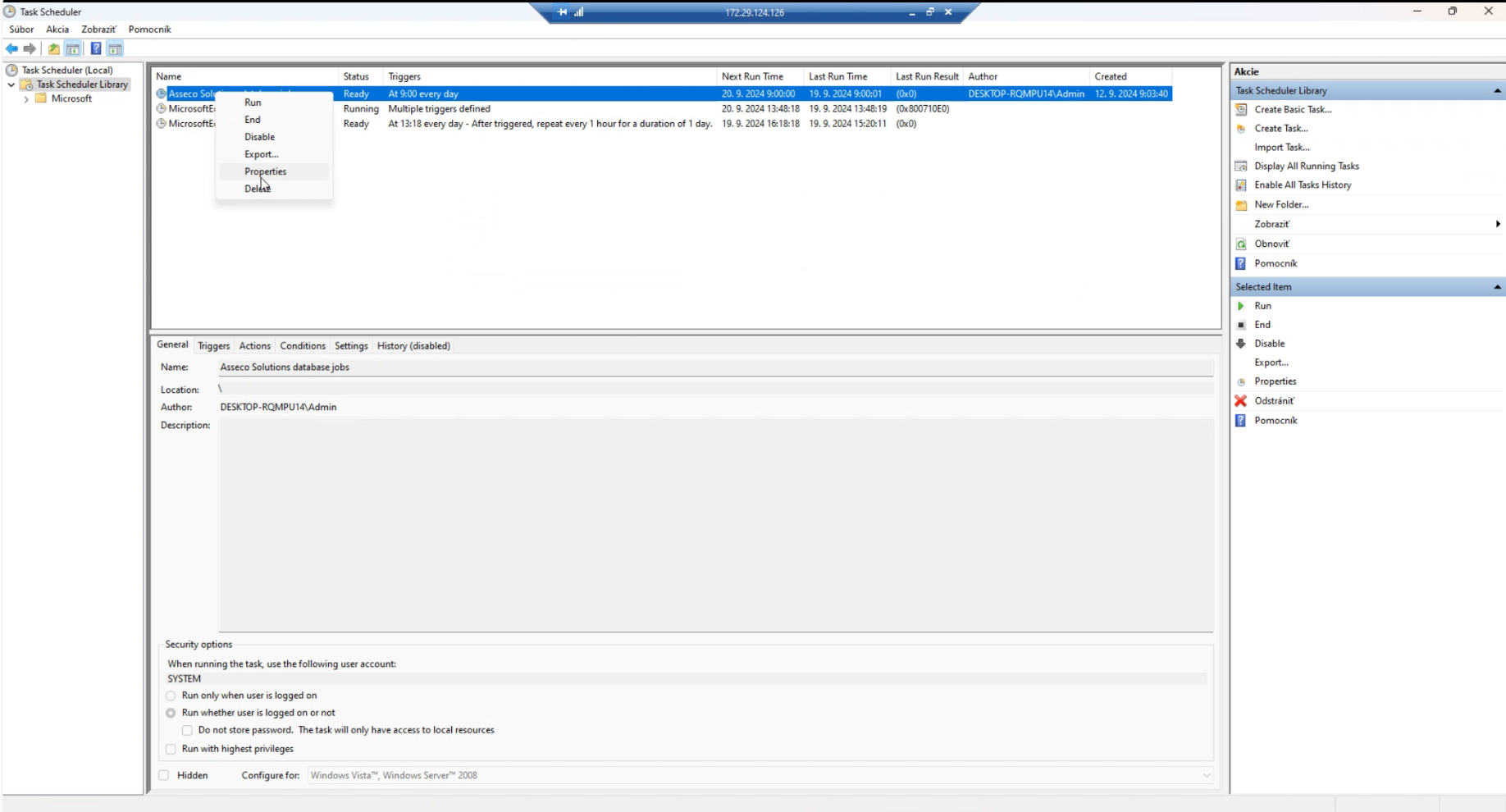
Locate the task “Asseco Solutions database jobs”:
- In the left panel, click on “Task Scheduler Library”
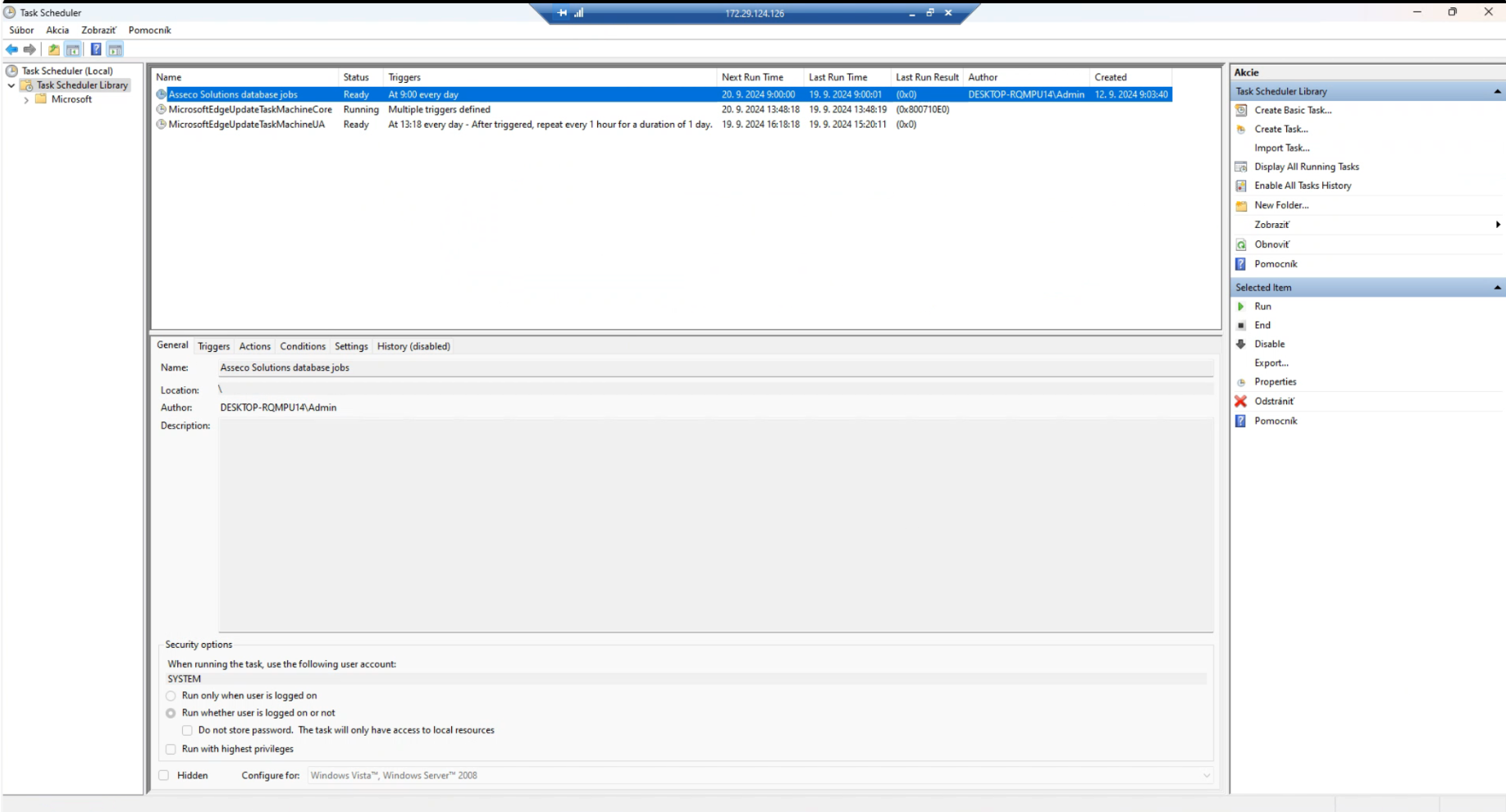
- In the task list, find “Asseco Solutions database jobs”. You can also use the search box in the top right.
- In the left panel, click on “Task Scheduler Library”
-
Modify the task:
- Right-click on the task and select “Properties”.
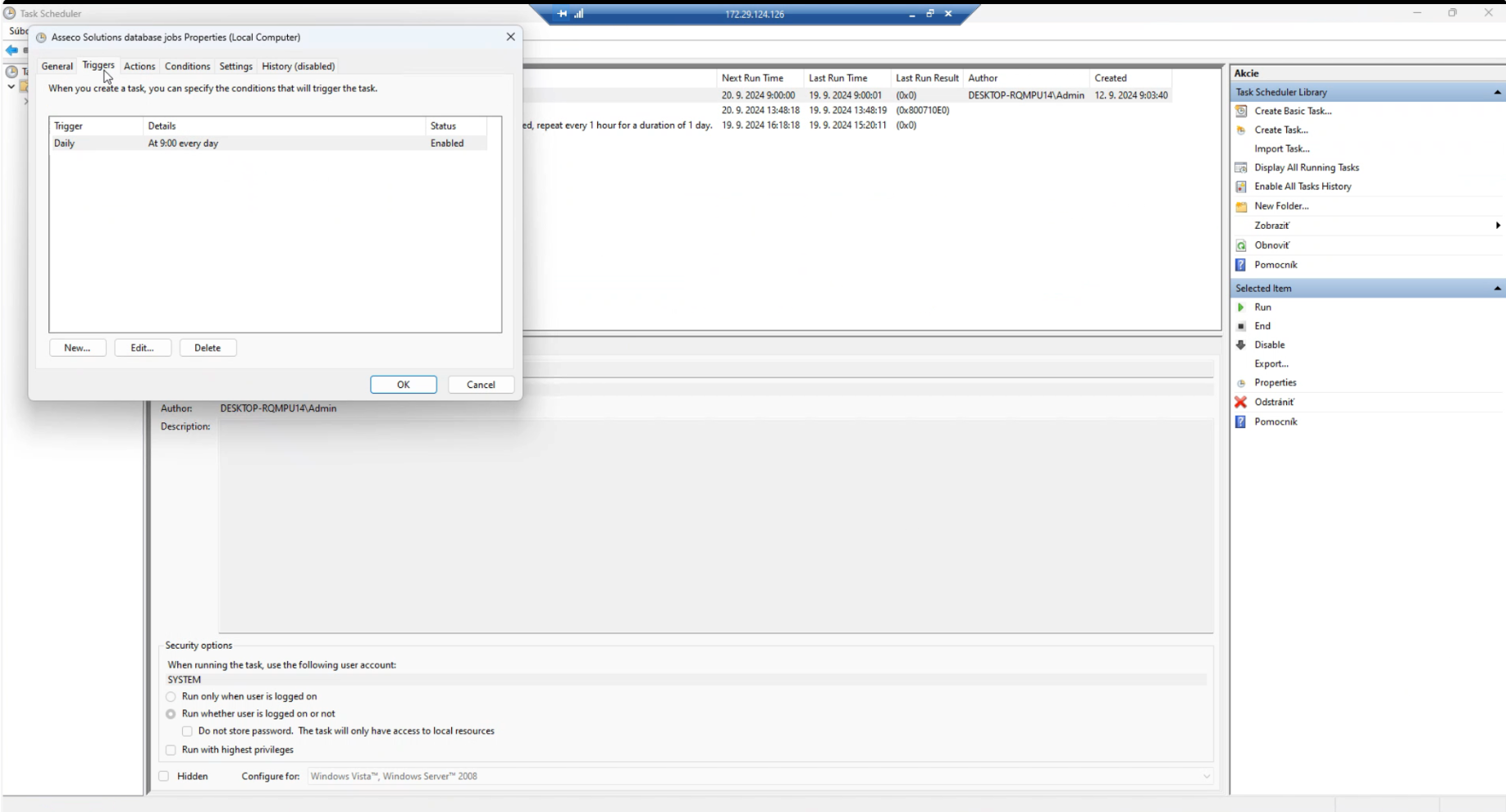
- In the window that opens, go to the “Triggers” tab. Here you can change the time and frequency of backups.
- Click “OK” to save changes.
- Right-click on the task and select “Properties”.
¶ Backup logs
After each automatic backup, the system creates a log of the backup process. These logs can be checked to ensure that the backup was successful.
There are two types of logs:
-
Simplified log:
- Contains information such as start and end time and whether the backup was successful.
- Location:
C:\Backup\log
-
Detailed log:
- Contains technical details useful for troubleshooting if a backup fails.
- Location:
C:\QASIDA\oracle\etc\log
¶ 2. Manual Backup
In the future, we plan to add the option to perform manual backups directly in Qasida Start. This feature will allow you to back up your data immediately as needed, without waiting for automatic backup.
¶ 3. External Backup
¶ Backup to External Hardware
Even though Qasida Start automatically backs up data to the local disk, we recommend regularly copying backups to external storage for added security.
How to do it:
- Connect an external drive (e.g., external HDD or USB stick) to your computer.
- Open File Explorer and navigate to the backup folder
C:\Backup.
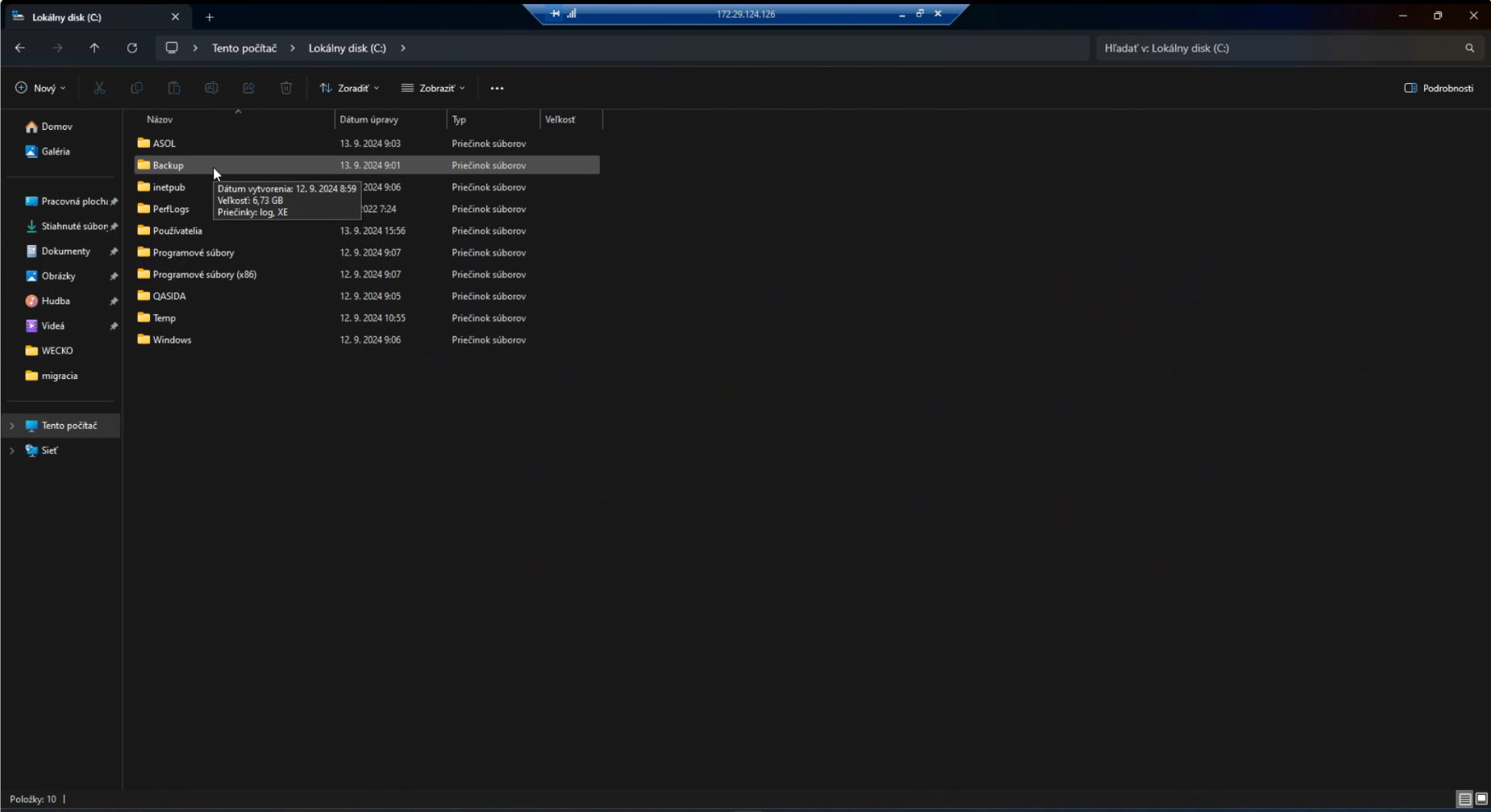
- Copy the entire “Backup” folder to the external drive (e.g., to a folder called “Backups” on the external drive).
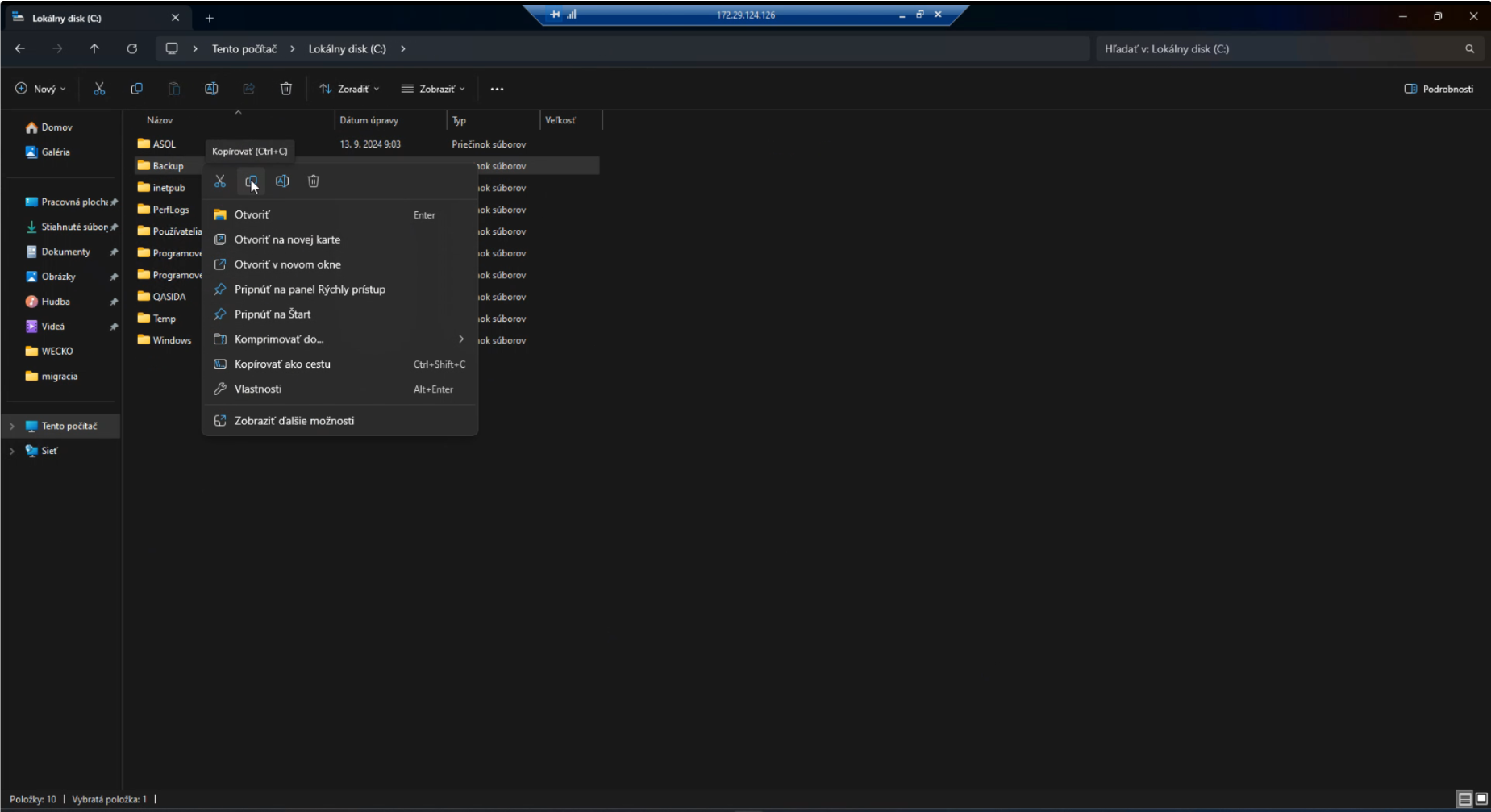
- This ensures you have a copy of backups on a separate physical storage device, protecting you in case of computer failure.
¶ Backup to the Cloud
To back up your data to cloud storage, you can use services like Google Drive or Dropbox. This ensures that your backups are safely stored on a remote server, accessible from any device with internet access.
¶ Setting up Backup on Google Drive
-
Install Google Drive:
- Go to Google Drive and download “Google Drive for Desktop”.
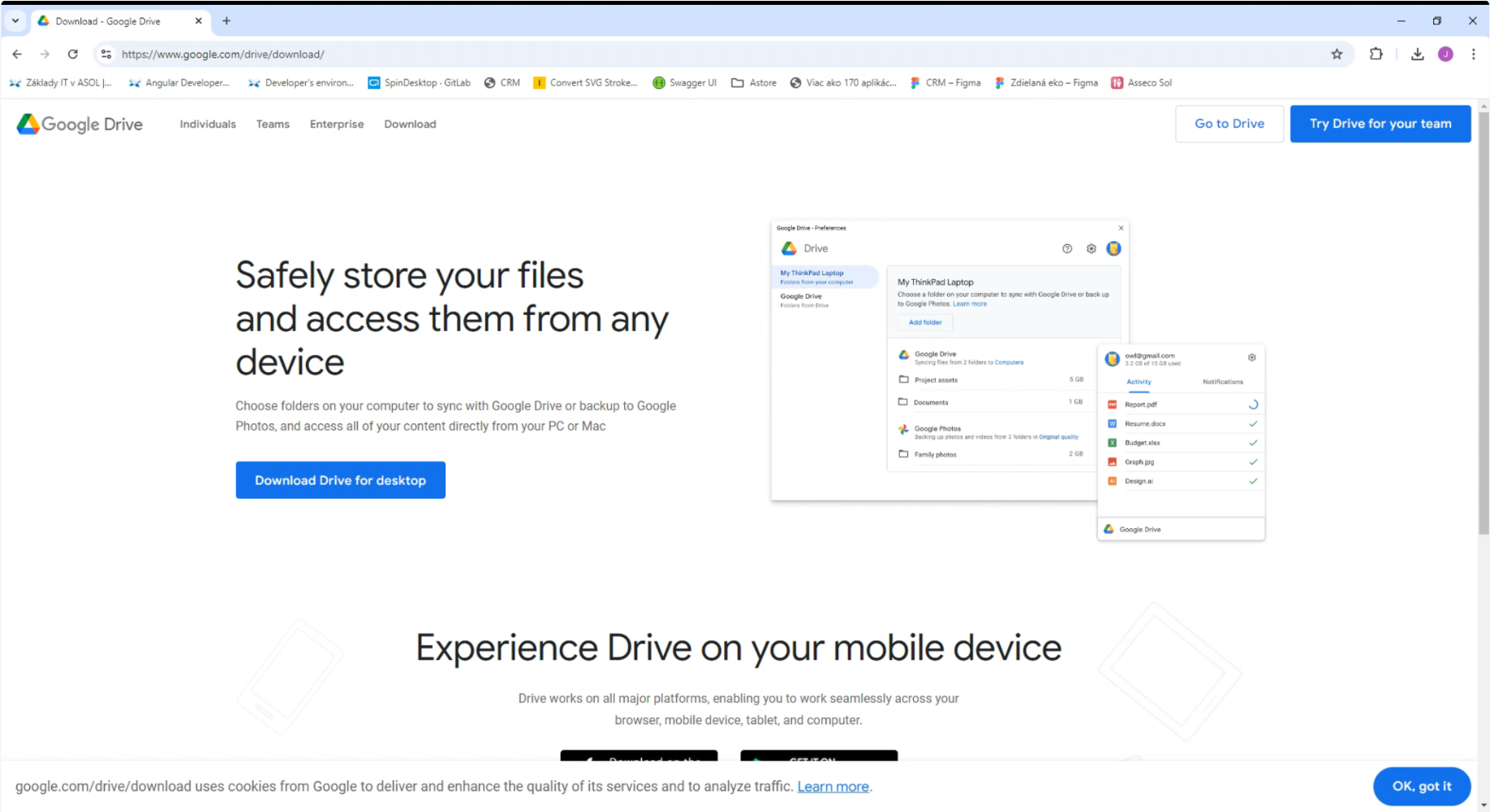
- Follow the on-screen instructions to install and log in.
- Go to Google Drive and download “Google Drive for Desktop”.
-
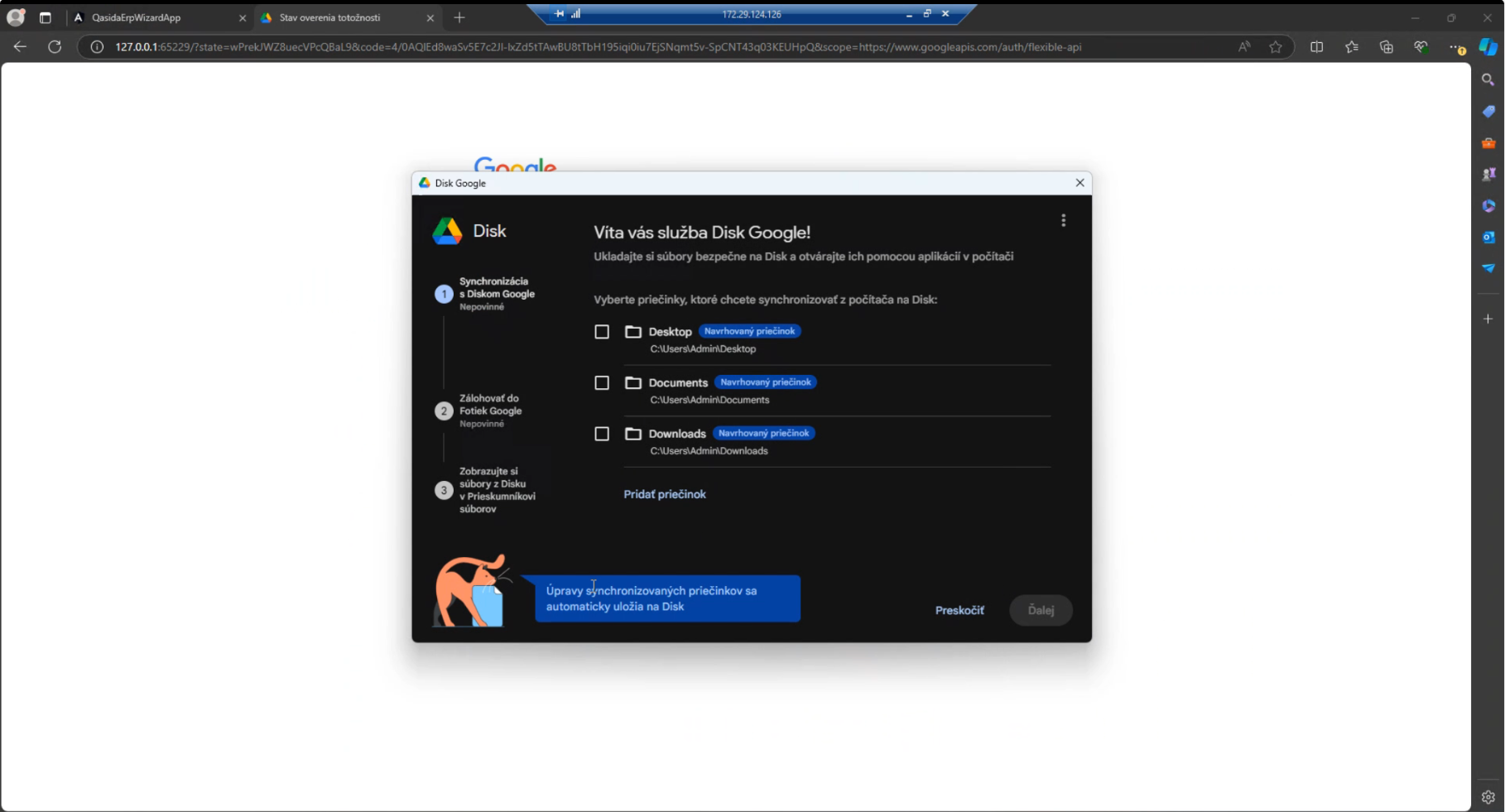
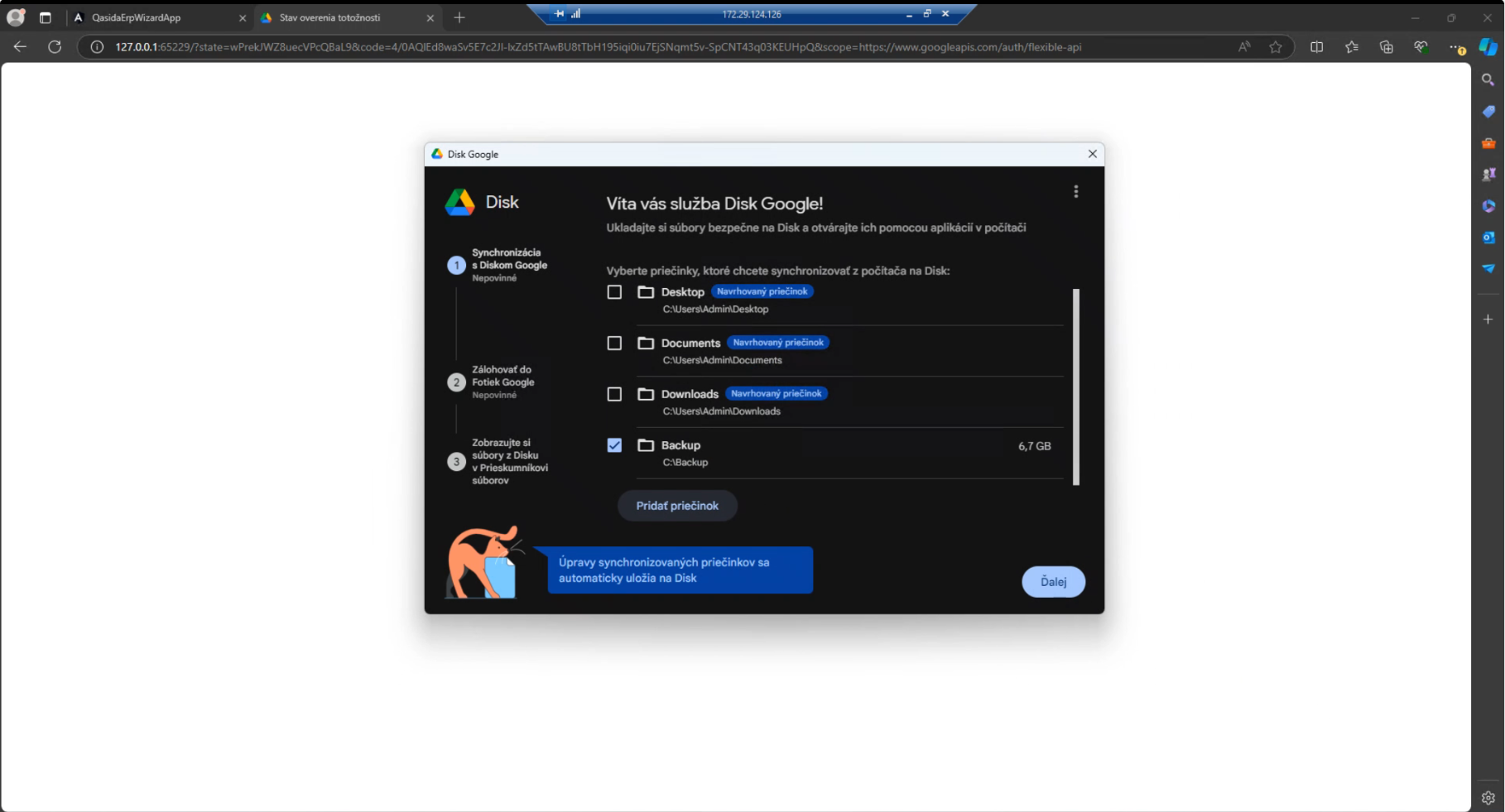
Sync the Backup folder:
- After installation, a “Google Drive” folder appears in File Explorer.
- Copy
C:\Backupto the Google Drive folder or set folder sync:- Click the Google Drive icon in the system tray.
- Select “Add Folder” and choose
C:\Backup.
-
Automatic daily backup:
- Each day when an automatic backup occurs, new files are automatically uploaded to Google Drive.
¶ Setting up Backup on Dropbox
-
Install Dropbox:
- Go to Dropbox and download the application.
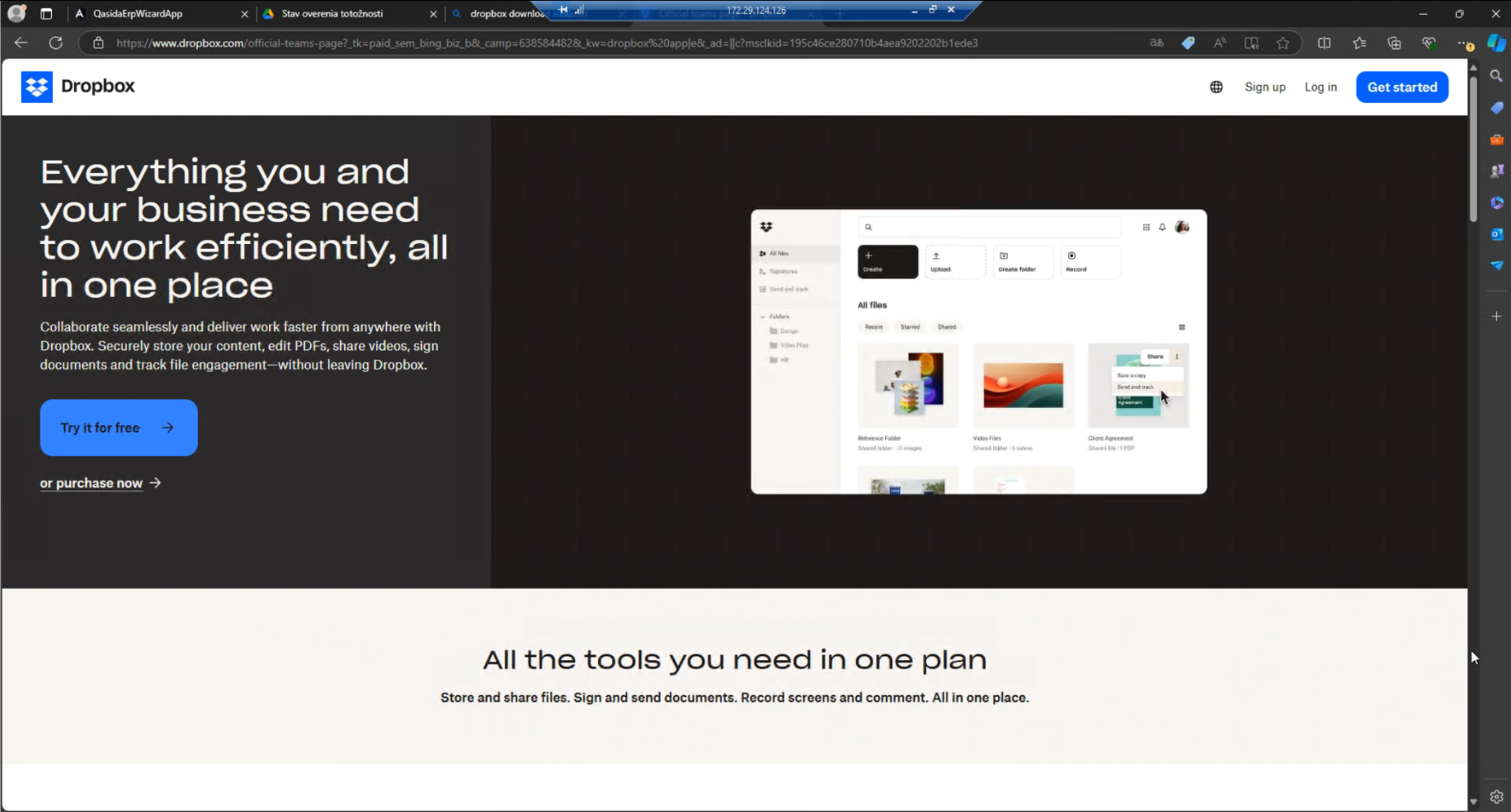
- Install and log in to your Dropbox account.
- Go to Dropbox and download the application.
-
Sync the Backup folder:
- After installation, a “Dropbox” folder appears in File Explorer.
- Copy
C:\Backupto the Dropbox folder or set up folder sync:- Click the Dropbox icon in the system tray.
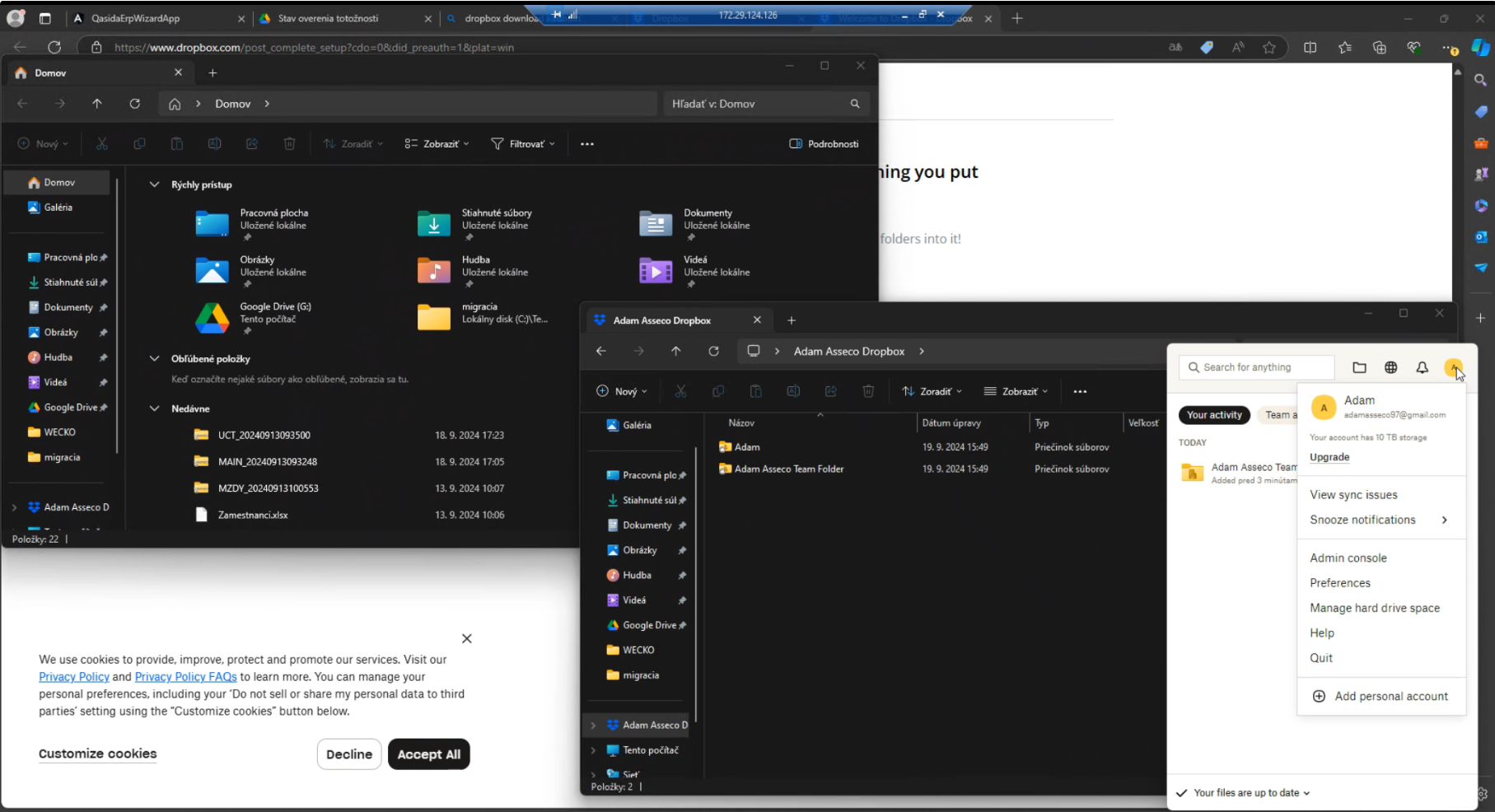
- Go to Preferences → Backups → Set Up.
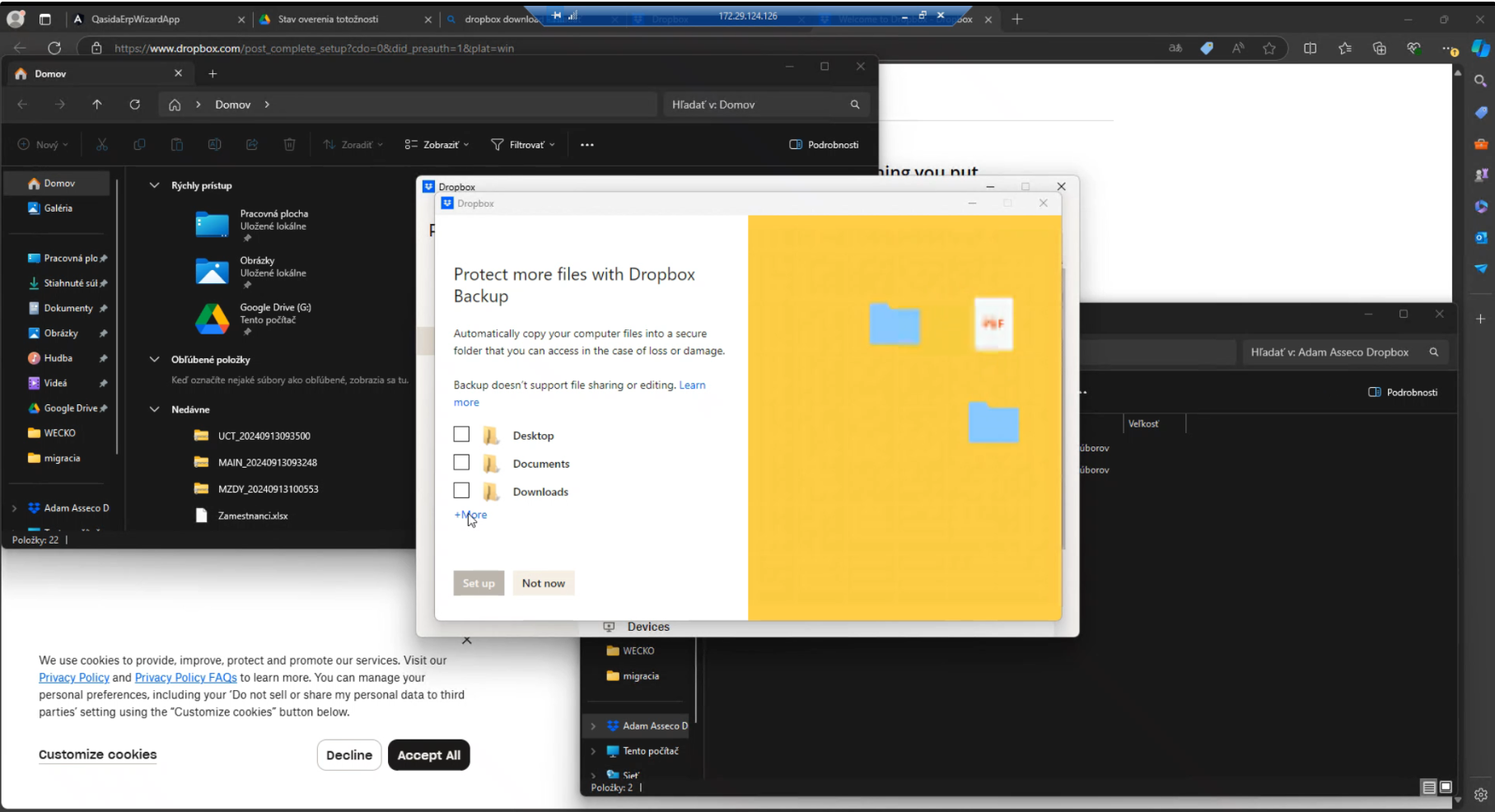
- Select
C:\Backupand confirm.
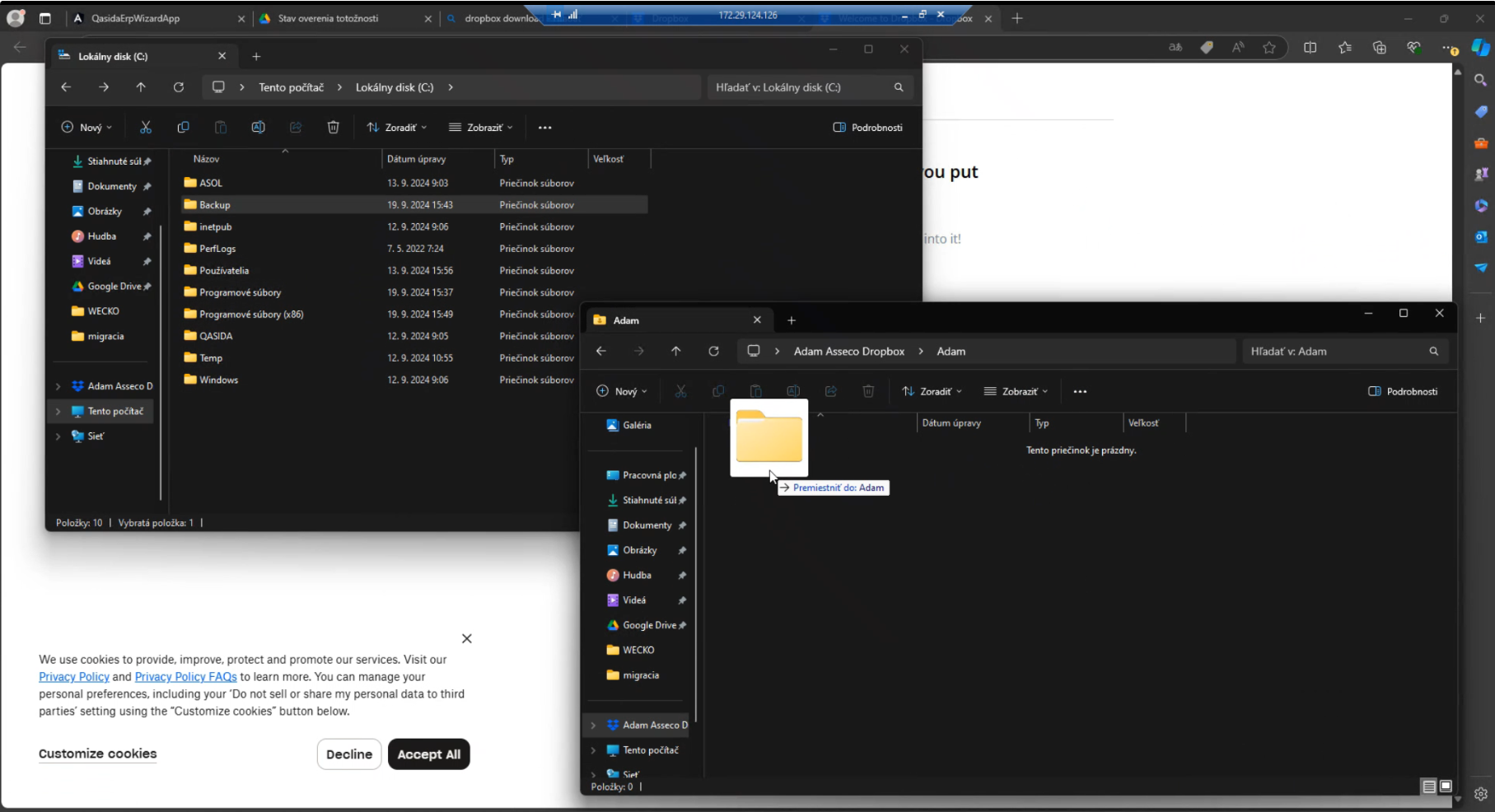
- Click the Dropbox icon in the system tray.
-
Automatic daily backup:
- Dropbox will automatically sync new backup files each day, ensuring an up-to-date copy in the cloud.
¶ 4. Restoring Data from Backup
If the database is lost or corrupted, it can be easily restored from a backup.
¶ How to restore the database:
-
Prepare for restore:
- Ensure Oracle 21c XE is installed and fully functional.
- Make sure you have access to the backup folder (
C:\Backup) and sufficient permissions.
-
Locate the restore script:
- The restore script is in
%QASIDA_BASE%\tools\RestoreDatabase. Open this folder in File Explorer.
- The restore script is in
-
Run the restore script:
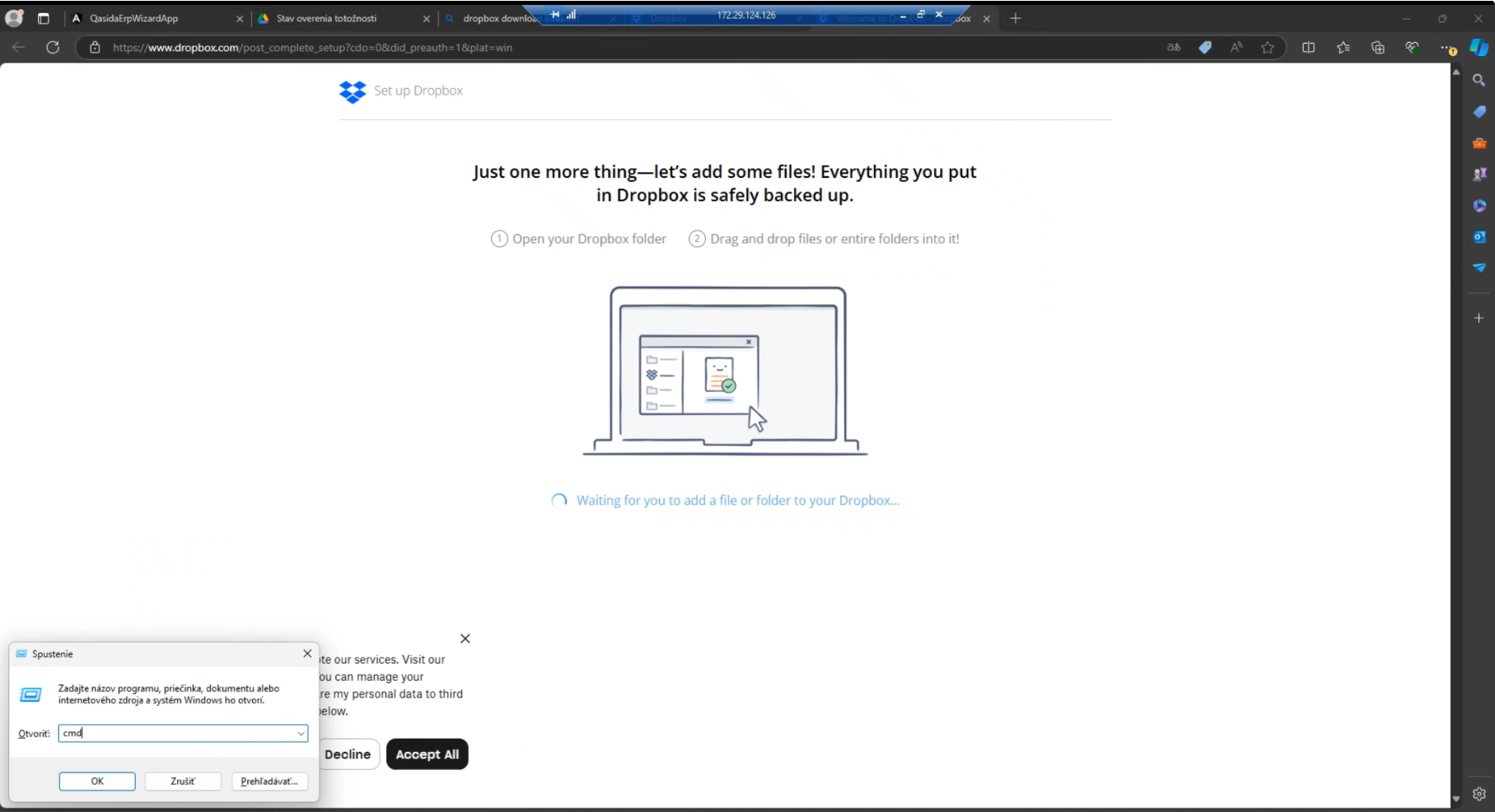
- Open Command Prompt:
- Press
Win + R, typecmd, and press Enter.
- Press
- Run the following command:
RestoreDatabase.bat C:\QASIDA X:\Backup - Open Command Prompt:
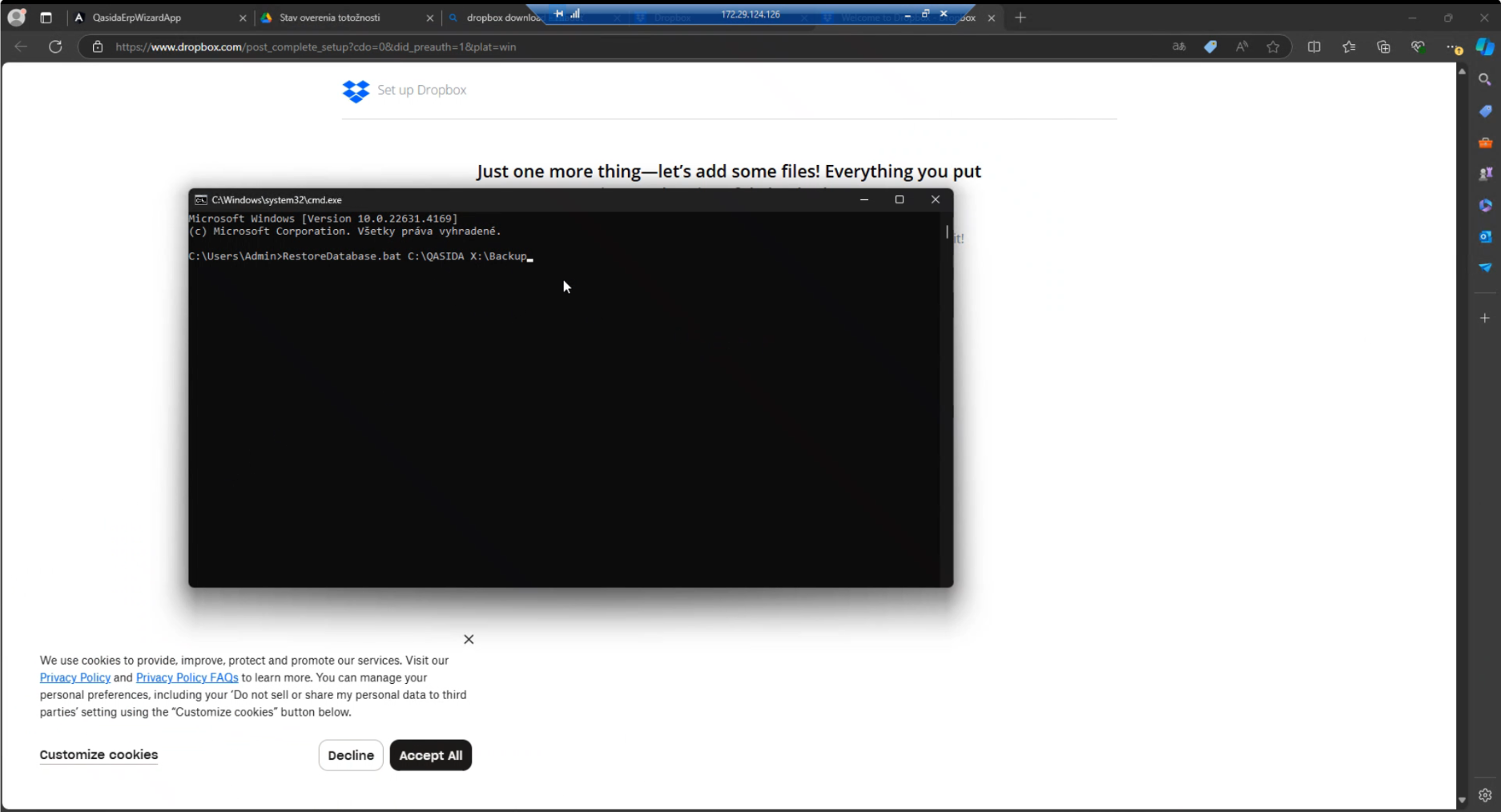
- C:\QASIDA – folder where Qasida Start is installed.
- X:\Backup – folder containing backups (can be on an external drive).
- Wait for the restore to complete:
- The restore process will run depending on backup size.
- The script outputs a confirmation of success at the end.
- Verify the restore:
- After completion, the database is ready to use. Check logs (see Section 1.3) for detailed information about the restore process.